Import YouTube transcripts and podcasts
The best input is the stuff you'd watch or listen to anyway. Two new import types bring it into Lector, where every word carries your known/unknown state, the translation drawer, and vocabulary mining: YouTube transcripts and podcast audio. Both live under the same Import menu.
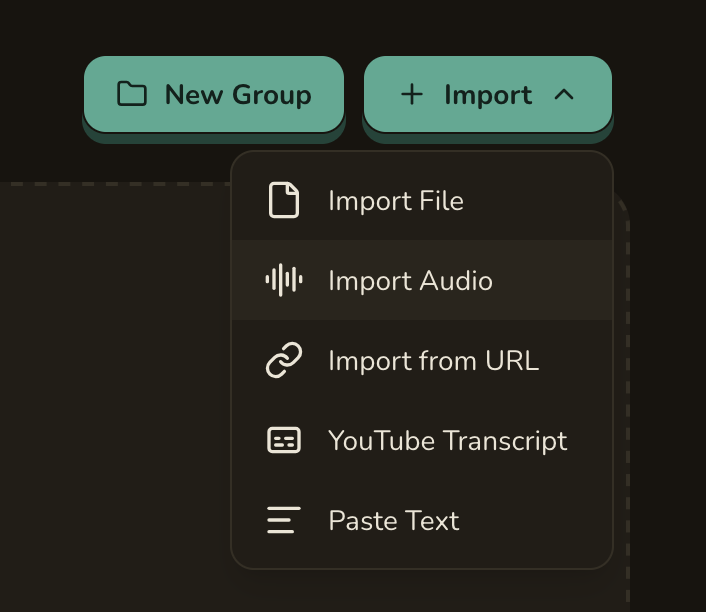
YouTube transcripts
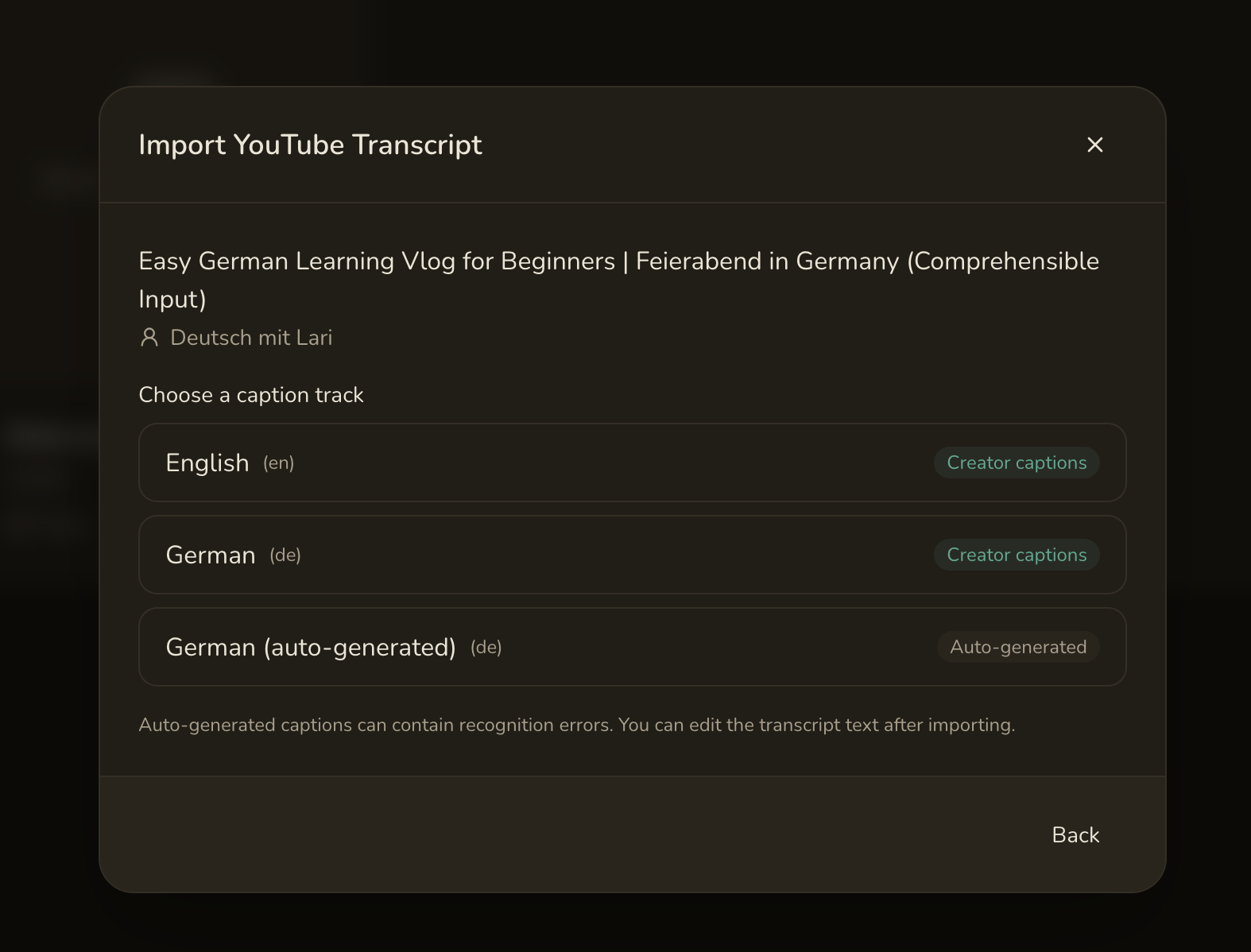
Paste a video URL and pick a caption track — creator captions and auto-generated captions are labelled separately, so you know what you're getting. Lector imports the transcript as a normal lesson.
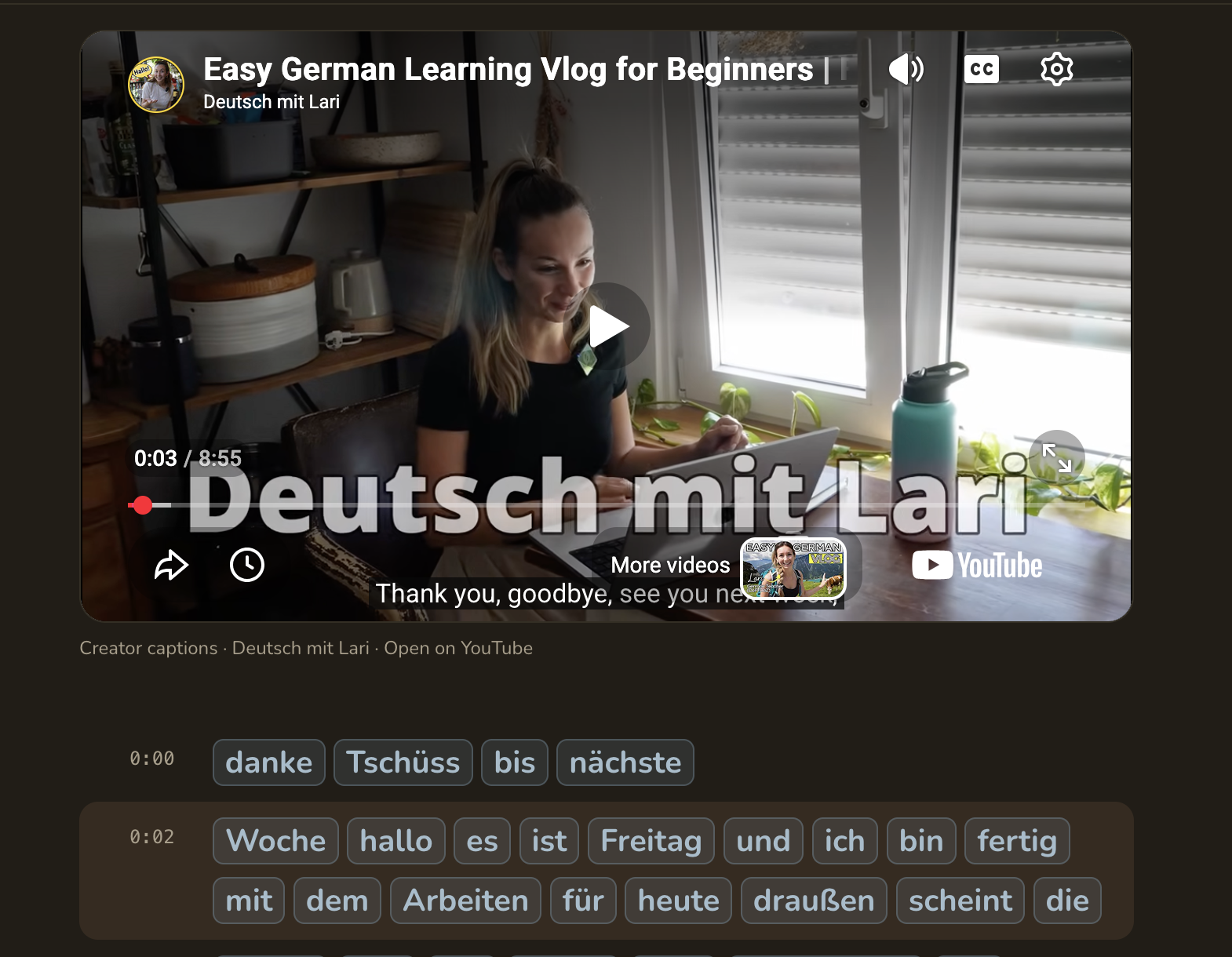
Every line keeps its timestamp. Click one and the embedded player jumps to that moment, so you can hear the sentence you're reading. The video is never downloaded or hosted — Lector reads the public transcript and links back to YouTube for playback.
Podcast audio
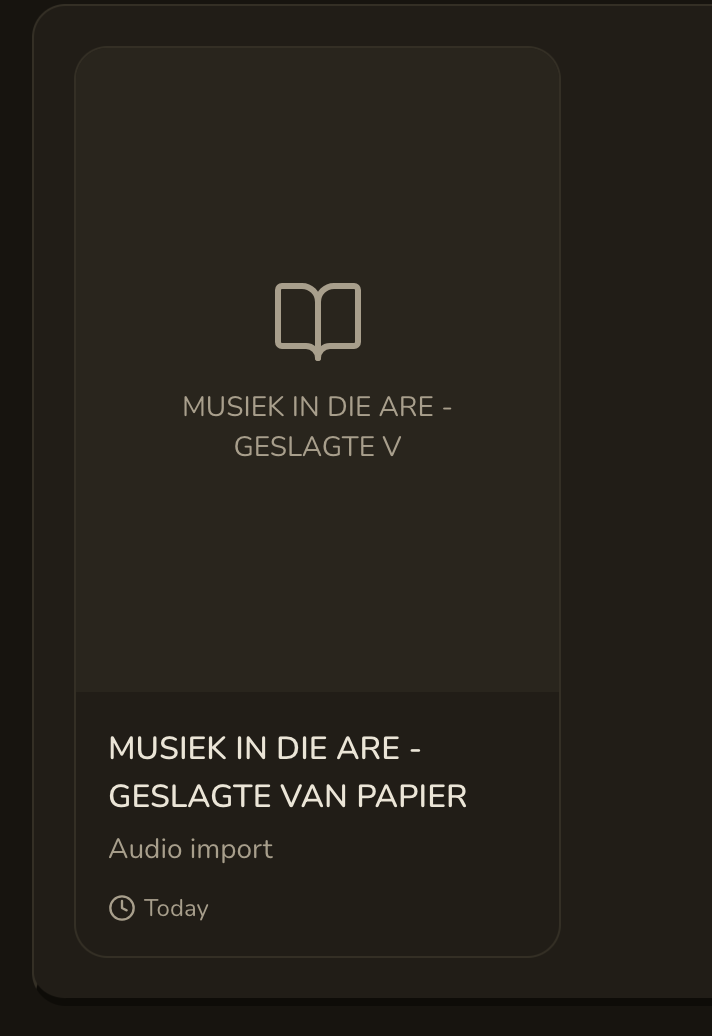
Choose Import Audio and upload an episode (or any audio file). Lector transcribes it in the background with a Whisper model — local, or a hosted transcription backend if you've configured one — and turns it into a lesson.
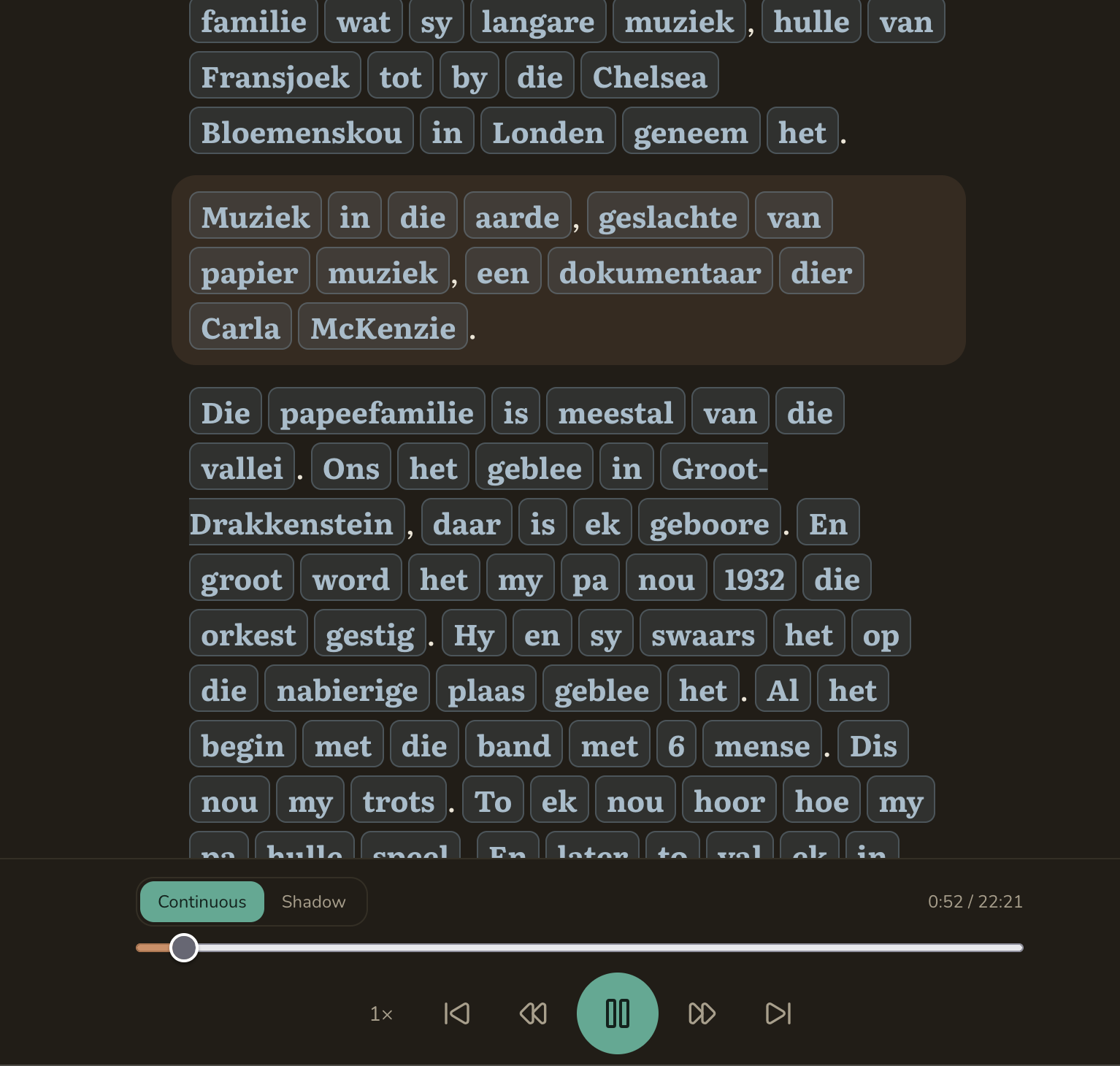
Then read along: press play and the current sentence highlights as the audio moves through it. Continuous plays straight through; Shadow is for shadowing practice. There's a speed control and sentence skip, and — as everywhere in Lector — every word is tappable for a translation or to save to your vocabulary.
Notes
- YouTube: not every video has captions; auto-generated ones can contain recognition errors (you can edit the transcript after import). The video is never downloaded or hosted.
- Podcasts: transcription accuracy depends on the audio and the model; the transcript is editable, and the audio stays on your own instance.
- A YouTube transcript is still useful even if the embedded player isn't available — the text stands on its own.
- Mining a sentence from a video carries a link back to its timestamp into your Anki export.